Overview
Use Malachyte Recommend in the Portal
Recommend
Malachyte Recommend allows you to customize the recommendations that display on your website. Recommendations rely on supervised machine learning models that are trained on your product data and user interactions.
Available Models
For your models, you can choose from:
- Recently Viewed: Displays products the user has interacted with lately.
- Recommended for You: Personalized suggestions based on individual behavior.
- Custom Models: Tailored options based on your specific business needs.
Playground
The Playground allows you to preview both search and carousel strategies in a safe environment before they go live.
Components
You’ll use Components when you want to apply structured Rules to one of your recommendation models. The Component Creator allows you to launch custom strategies from pre-defined templates while controlling:
- Eligibility: Which products are eligible to appear.
- Ranking: How products are ordered and prioritized.
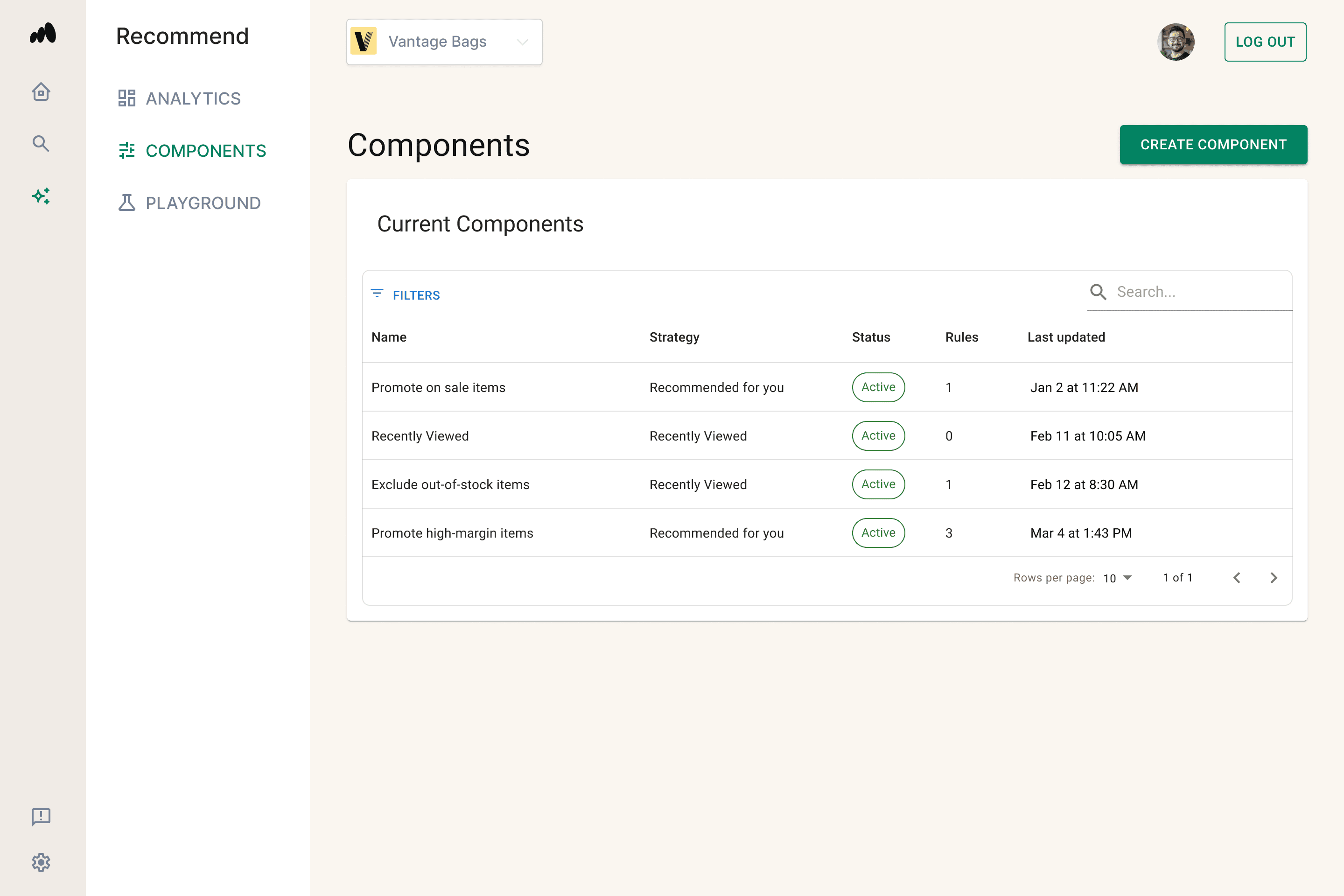
Components combine eligibility logic and merchandising controls into a single configurable layer.
How to Create a Component
- Go to the Components tab.
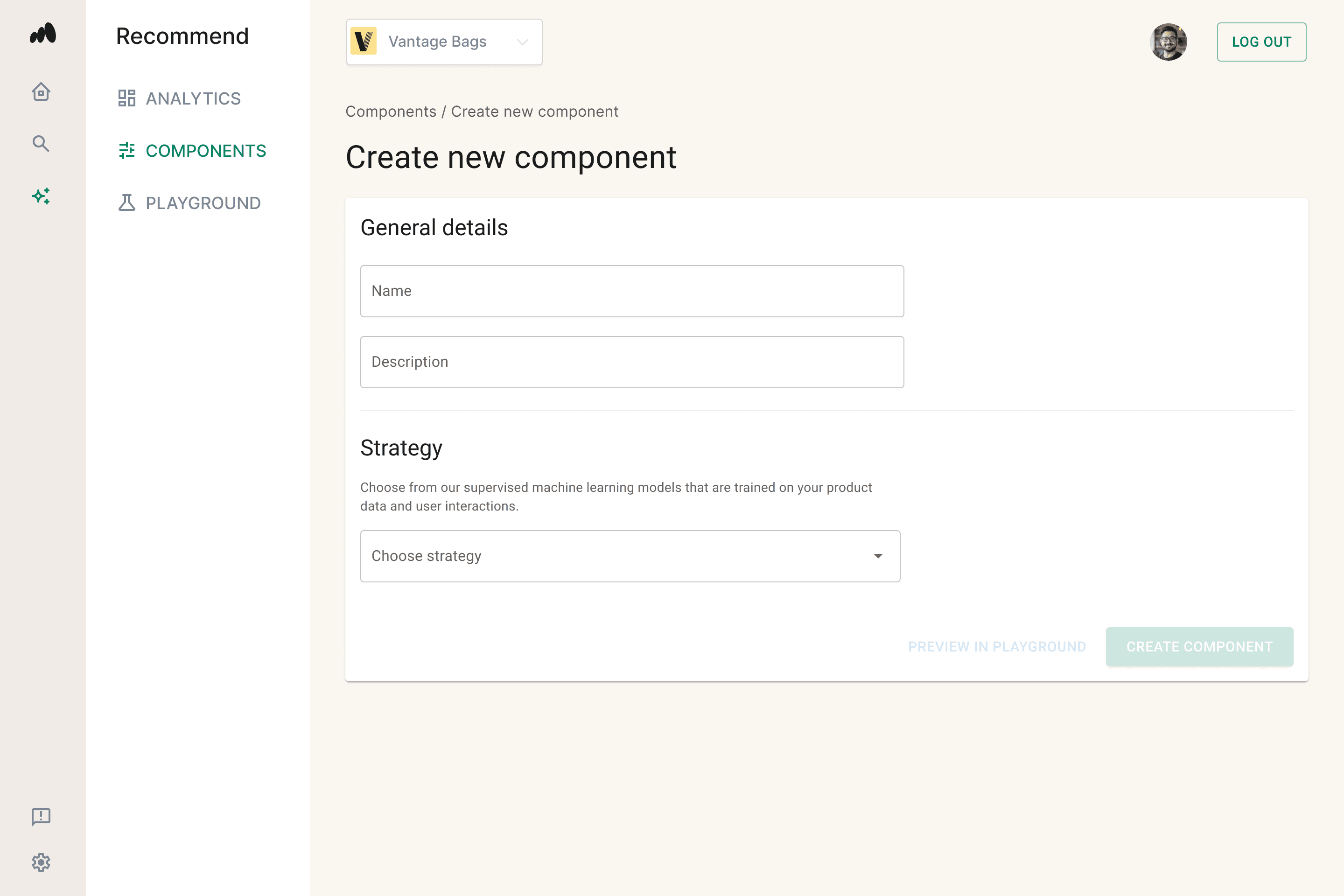
- Click Create New Component.
- Fill out the required fields:
- Name: Give your component a recognizable title.
- Description: Internal notes on the component's purpose.
- Strategy: Select your model (e.g., Recommended For You).
Advanced Customization: Rules & Conditions Structure
Components use a Rules → Conditions hierarchy to determine exactly which products surface to your customers.
1. Conditions
A Condition is a single, atomic check against your product catalog.
- Examples:
Price < $50,Category = Jackets, orMargin > 20%.
2. Rules
A Rule acts as a container for one or more Conditions.
- Conditions within a single Rule can be combined using AND / OR logic.
3. Multiple Rules
Rules themselves can also be combined with AND logic. This flexibility allows you to build everything from simple filters to complex, multi-layer logic trees.
Logic Summary
To help visualize the hierarchy:
- Condition = Atomic check
- Rule = Logical group of conditions
- Multiple Rules = Your full merchandising strategy